
Are Mac Cleaner Apps Safe? What to Check Before You Clean
A cleaner has found several gigabytes of “junk,” and now it wants access to your disk. Are Mac cleaner apps safe to trust with that decision? Mac cleaner apps can be safe to use, but a trusted download and a careful deletion review are separate requirements. I would check who made the app, why it needs each permission, and exactly what it intends to remove before clicking Clean.
For an occasional storage clear-out, start with macOS. Consider a dedicated utility when finding files or investigating recurring storage problems becomes the hard part.
What Makes a Mac Cleaner Safer to Use?
Look for evidence you can check, rather than treating a familiar logo or a large scan result as reassurance.
| Check | Useful evidence | Reason to pause |
|---|---|---|
| Download source | The developer’s own site or its genuine App Store listing | A lookalike site, cracked download, or unexpected installer |
| macOS security | The app opens through normal macOS checks | Instructions to disable security protections just to install a cleaner |
| Permissions | An explanation tied to the feature you want | Broad access with no clear purpose |
| Deletion controls | Identifiable files, selection controls, and a clear confirmation | A total size with no meaningful way to inspect its contents |
| Recovery | Documented Trash or recovery behavior, plus your own backup | Assuming every Clean button has an undo |
| Privacy and support | A relevant privacy policy, current compatibility information, and a reachable developer | Unanswered questions about data collection or support |
How I assessed this: I checked Apple’s current security, permissions, storage, and uninstall documentation in September 2026, along with Cindori’s product page, release feed, store, and first-party imagery. This is an evaluation checklist, not a malware-lab test or a ranking of every cleaner. Cindori makes Sensei, which appears below as an example.
What Apple’s Security Checks Actually Tell You
Gatekeeper helps check downloaded software; it does not decide which of your files you still need.
Apple’s guide to opening apps safely explains that macOS checks a downloaded app’s developer signature and, by default on macOS Catalina or later, requires notarization. Apple describes notarization as a check for known malicious software. It is useful evidence about the download.
It is not a deletion guarantee. Apple’s developer documentation explicitly distinguishes automated notarization from App Review. My practical conclusion: an app passing those checks still needs sensible file-selection controls, and you still need to use them.
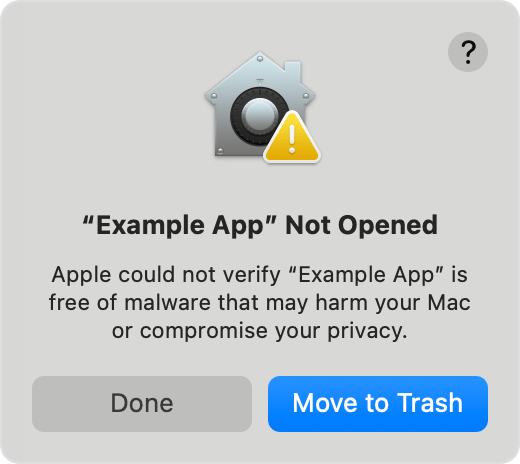
Apple’s current support article uses this macOS Sequoia example. The wording and appearance can vary; this is not a warning about a particular cleaner.
If macOS cannot verify an app, stop and check the developer’s official guidance or choose an alternative. A warning is not something to dismiss because a download page says the app is essential.
Tip: Type the developer’s known address yourself when you are unsure about a download link. A polished page and a familiar icon are easy things to copy.
The App Store adds Apple’s review process, but no distribution channel can tell whether your old project folder is expendable. Likewise, free, paid, and open-source are licensing distinctions, not safety verdicts.
Should a Cleaner Have Full Disk Access?
Full Disk Access is a substantial permission. Decide whether the feature justifies it before granting it.
Apple’s Privacy & Security settings reference describes access that includes other apps’ data, such as Mail and Messages, Time Machine backup data, and certain administrative settings. A cleaner may need access to protected locations to inspect them, but that explanation should come from its developer.
On current macOS, review the list in System Settings → Privacy & Security → Full Disk Access. You can change an app’s access there. For a work-managed Mac, ask your IT team before adding a utility or changing its permissions.
Before agreeing, ask:
- Does the requested access relate to the cleanup I actually want?
- Does the privacy policy explain what data is collected or transmitted?
- Can I use a narrower feature instead, or leave protected locations alone?
Granting a permission is not evidence that an app uploads your files. Equally, a native interface or a paid license does not prove that it never sends data. I would want an explicit disclosure before making either claim.
Which Cleanup Decisions Need Extra Care?
The word “junk” is a suggestion from software, not a description of how valuable a file is to you.
Downloads and large files: inspect them by name and location. An old installer may be replaceable; an equally old recording may be your only copy. Size is a useful sorting tool, but a poor deletion rule.
Caches and logs: remove these to address a specific storage or troubleshooting need. Apple notes that certain system caches cleared in safe mode are created again when needed. Chasing a permanently empty cache is not a useful maintenance goal. Keep diagnostic logs if you are working through a problem with support.
App support files and backups: leave unfamiliar folders alone. A folder associated with an app can hold settings or work you intend to keep. An old backup also has a purpose beyond the space it occupies.
Synced files: understand the service’s behavior first. With iCloud Drive, deleting a file on one device propagates to the others. A synced copy is not an independent backup against that deletion.
Tip: Review one category at a time. If you cannot explain why a file can go, deselect it and keep moving.
For app removal, use the developer’s uninstaller when one is supplied. Apple recommends that route for removing the app and associated items such as extensions and login items. A general cleaner should not replace a vendor’s documented removal procedure.
Start with macOS, Then Decide Whether You Need More
You can reclaim storage without installing another app.
- Open System Settings → General → Storage on macOS Ventura or later.
- Inspect the categories and identify files or apps you recognize.
- Back up anything important, then remove a small, understood selection.
- Check the result before moving on to another category.
Apple’s storage guide covers these built-in tools. If this solves the problem, there is no reason to buy a cleaner simply to repeat it on a schedule.
A dedicated utility earns its place when it helps you understand what is taking space or connects that investigation to other symptoms. For product choices, see our best Mac cleaner apps comparison.
How I Would Evaluate Sensei for This Job
Sensei’s useful distinction is the investigation workflow: storage cleanup and app removal sit within an app that also provides configurable monitoring and hardware information.
The first-party Clean screen below explicitly offers a View Items step. That is the part I would use before deciding what to remove. The screenshot shows the overview, not a completed scan or proof that every result is expendable.

The current Sensei product page documents cache and log cleaning, app uninstalling, storage scanning, configurable monitoring, and dedicated drive, battery, and thermal views. I like that you can investigate a crowded drive and a performance symptom within the same app, rather than assuming more deletion is always the answer.
Cost and fit: as of September 2026, Sensei 2.1.2 requires macOS 14 or later. The store lists 29 per year or a 59 one-time license, each for up to three Macs. The one-time license includes version 2 updates; later major versions may require a paid upgrade. For a one-off cleanup of obvious files, macOS remains the simpler free choice.
Some Sensei cleaning features require Full Disk Access. Apply the same permission and file-review questions here. Neither the promotional screenshot nor this article is an independent audit of Sensei’s network behavior or a promise of universal undo.
Before You Click Clean
Make the first cleanup small enough that you understand every change.
- Confirm that you have a current, usable backup of important data.
- Quit apps whose data you intend to remove, and follow their vendor guidance.
- Review the selected paths. Exclude unfamiliar support folders, libraries, and backups.
- Check whether this particular action moves files to Trash or deletes them permanently.
- Afterward, reopen the files and apps you care about before discarding any recoverable copies.
Tip: When files go to Trash, they still occupy storage until you empty it. That delay can be useful while you check your work.
I would choose a cleaner for a task I can name, such as finding leftover app files or investigating storage use. Once that task is finished, I would leave the remaining files alone unless another specific problem needs attention.

Investigate Storage with Sensei
Explore cleanup, app removal, configurable monitoring, and dedicated hardware information in one Mac app.
Frequently Asked Questions
Frequently Asked Questions (FAQ)
Are Mac cleaner apps safe to use?
They can be, when the download is authentic, the permissions make sense, and you review the proposed deletions. No cleaner can know the personal value of every file it finds.
Does Apple notarization mean a cleaner cannot delete important files?
No. Notarization checks software for malicious content and signing issues. It does not certify each cleanup choice or provide a backup of your files.
Do I need a Mac cleaner?
Not for every storage problem. Start with macOS Storage settings and files you recognize. A dedicated utility may help when you need more visibility or a repeatable investigation workflow.
Is Full Disk Access a sign that a cleaner is malware?
No. Legitimate features may need it, but it grants broad access. Read the developer’s explanation and privacy policy, and grant it only if you are comfortable with that access.
Can I undo a cleaner’s deletions?
That depends on the action. Check its documented behavior before proceeding. Trash-based removal can leave a recovery window, but permanent deletion and emptied Trash require a different recovery source, such as your backup.
Will uninstalling a cleaner cancel its subscription?
No. App removal and subscription cancellation are separate. Cancel through the service or store that bills you and keep the confirmation.
Related guides:
Stay in the loop.
Get exclusive deals and invitations to try out our new app releases.